
Photocopier Repair UAE
Why Do Copies Have Lines When Direct Prints Look Clean? A UAE Copier Maintenance Guide
Oct
An office copier may produce a vertical line on copied contracts or scanned PDFs while documents printed directly from a computer look normal. That difference is useful evidence: the fault may be in the scanner or automatic document feeder (ADF) path rather than the toner or print engine. It is a reason to compare outputs—not to order a replacement part immediately.
This guide helps UAE offices isolate the symptom, understand safe cleaning limits and prepare a useful copier-maintenance enquiry. Always follow the instructions for the exact model. Do not dismantle the machine or reach into restricted electrical areas.
Start with three controlled tests
Use one clean, uncreased original with clear text and a simple border. Keep the settings and orientation consistent. Avoid documents containing confidential customer information.
1. Print a known-good file directly
Print a PDF that looks correct on screen, or use the copier’s internal test page. If the line is also on this output, the fault is not limited to scanning. Record its position, colour and whether it repeats at a regular distance. Request print-system assessment rather than assuming the ADF needs cleaning.
2. Copy the original on the flatbed
Place the clean sheet on the large platen glass and make a copy. A clear flatbed copy shows that this test did not reproduce the defect through the main scanning area.
3. Copy the same sheet through the ADF
Feed the same original through the document feeder. If a line appears in the same position on ADF copies but the flatbed copy and direct print remain clean, record that exact pattern. Inspect only the scan strip and other user-accessible surfaces identified in the manufacturer’s instructions.
Keep one labelled sample from each test. A short, consistent comparison is more useful than running dozens of uncontrolled copies.
Why a small mark can become a full-page line
During ADF scanning, the sheet moves past a narrow scanning area. A fixed obstruction can therefore appear as a line along the moving page. HP’s guidance for specified LaserJet Enterprise, PageWide Enterprise and Managed MFP models describes this pattern: ADF copies or scans have streaks while flatbed copies and direct prints look normal. It identifies debris on the ADF glass as a common cause.
Canon also explains that residue such as pencil lead on the feeder roller can produce dirty copies or black streaks. These examples support checking the scan path, but they do not prove the cause on every copier. The model and test results still matter.
Safe copier cleaning: what to check first
Identify the exact model and approved procedure
Some feeders use more than one scanning surface for duplex work. The location, cleaner and shutdown procedure can differ. Find the model label and consult the official user manual or your service provider before cleaning. Do not force the feeder, adjust sensors or remove sealed covers.
Follow the required power-down sequence
Canon’s cited ADF-roller procedure requires switching off the main power and disconnecting the power cord. Follow the instructions for your own model, including its normal shutdown sequence. Keep hands away from moving mechanisms, hot areas and electrical parts.
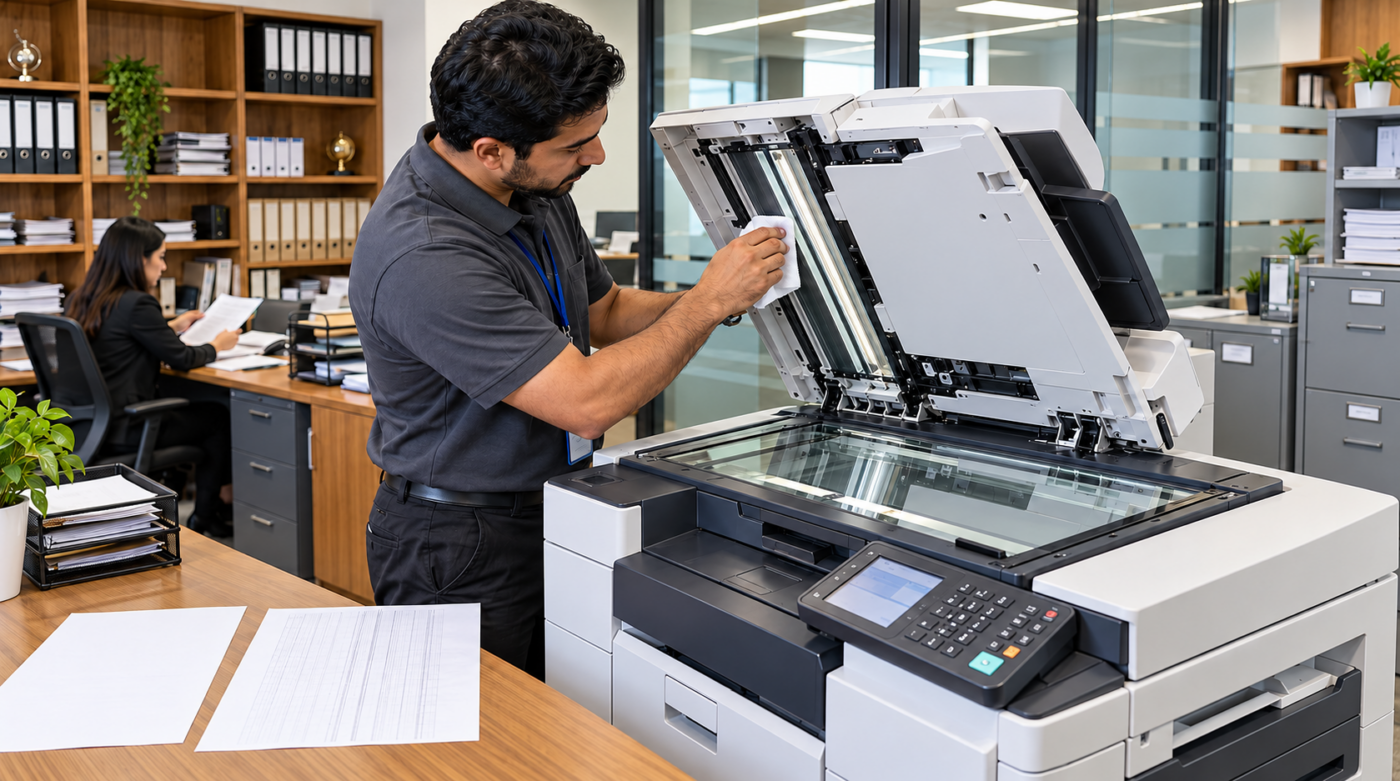
Apply permitted cleaner to the cloth—not the machine
Xerox’s WorkCentre 7830-series instructions specify water or an approved lens-and-mirror cleaner and warn against pouring liquid directly onto the glass. HP likewise warns against spraying water or cleaner directly onto the glass or printer. Excess moisture can enter the device.
Use only the cloth and cleaning liquid permitted for the model. Avoid abrasive pads, unapproved solvents and soaking the cloth. Clean gently and dry the surface as instructed.
Retest once, then stop if the fault remains
Where the manual permits, check the large platen, narrow ADF glass strip and the white reference surface opposite it. Side lighting may help reveal a small mark. Close the feeder carefully and repeat the same flatbed/ADF comparison after cleaning.
If correct user-level cleaning does not resolve the problem, stop further intervention. A scratched surface, backing-strip problem, feeder fault or another scan-path issue may need professional assessment. Do not buy a scanner unit based on a line alone.
Clues that point beyond the ADF glass
The mark appears on direct prints too
A line on both direct prints and copies means the scan path is not the only suspect. Depending on the device and symptom, a technician may need to examine imaging, toner, transfer or fusing components. Similar-looking defects can have different causes.
Only the reverse side of duplex scans is affected
Some single-pass duplex feeders have separate scanning surfaces for the front and back. Note which side is affected and compare a single-sided ADF scan. Do not assume both surfaces have the same access or cleaning instructions.
Paper also skews, jams or creases
Report these symptoms separately from the line. They help distinguish an image defect from a document-transport problem. Follow the manual’s jam-removal procedure and never pull against resistance.
What evidence should you send for copier maintenance?
- The manufacturer and exact model number.
- A clear photo of any control-panel error or message.
- Labelled direct-print, flatbed-copy and ADF-copy samples.
- Whether the line is on the front, back or both sides, and whether it stays in the same position.
- The paper size, orientation and whether the problem affects colour, black-and-white or both.
- A safe one-minute video of the fault, without opening restricted covers or recording private documents.
- Any recent jam, spill, cleaning attempt, sticky-label document or part replacement.
For purchase-condition checks, see what to look for in a refurbished copier. For model-matched components, explore printer and photocopier spare parts and repair. Our service FAQ also explains enquiry preparation.
Request a copier-maintenance quotation in the UAE
ZD Computer Trading provides copier repair and maintenance support for UAE customers. Send the fault evidence so the team can review the requirement before confirming a service arrangement. Parts, price and turnaround depend on assessment; they cannot be confirmed from a symptom alone.
Business enquiries: include your company name, Trade License or TRN, complete service address and Google Maps location, and the contact person’s name and mobile number. Add the exact model, error photo and safe one-minute fault video where relevant.
Home users: a Trade License or TRN is not required. Send your name, contact number, full service address/map, model and fault evidence.
WhatsApp: +971 50 886 3312
Office: +971 4 393 1778
Request a copier-maintenance quotation from ZD Computer Trading
Frequently asked questions
Why do copies have lines when printed documents are clean?
The difference suggests checking the scanning path before replacing print-engine parts. Compare a direct print, a flatbed copy and an ADF copy using the same clean original.
Does an ADF line mean the scanner is broken?
Not necessarily. A small mark on an accessible scan strip can produce a long line. If model-approved cleaning does not help, arrange assessment rather than dismantling the feeder.
Can I spray glass cleaner onto the copier?
No. HP and Xerox warn against applying liquid directly to the glass or machine. Follow the exact model’s procedure and apply only a permitted cleaner to the specified cloth.
Should I replace toner to fix an ADF-only line?
Do not assume toner is the cause when direct prints and flatbed copies are clean. Share the comparison samples first so the relevant scan path can be assessed.
Can you confirm repair cost from one photograph?
A photo helps initial triage but may not identify the faulty component. Model details, comparison samples and an assessment are needed before confirming parts, price or turnaround.
Official technical references
- HP Support: vertical lines or streaks when copying or scanning from the ADF
- Canon Support: clean the scanning area of the machine
- Xerox Support: clean the document glass and CVT glass
