
Uncategorized
Office Printer Repair in Dubai & Sharjah: Fault Checks and Service Preparation
Oct
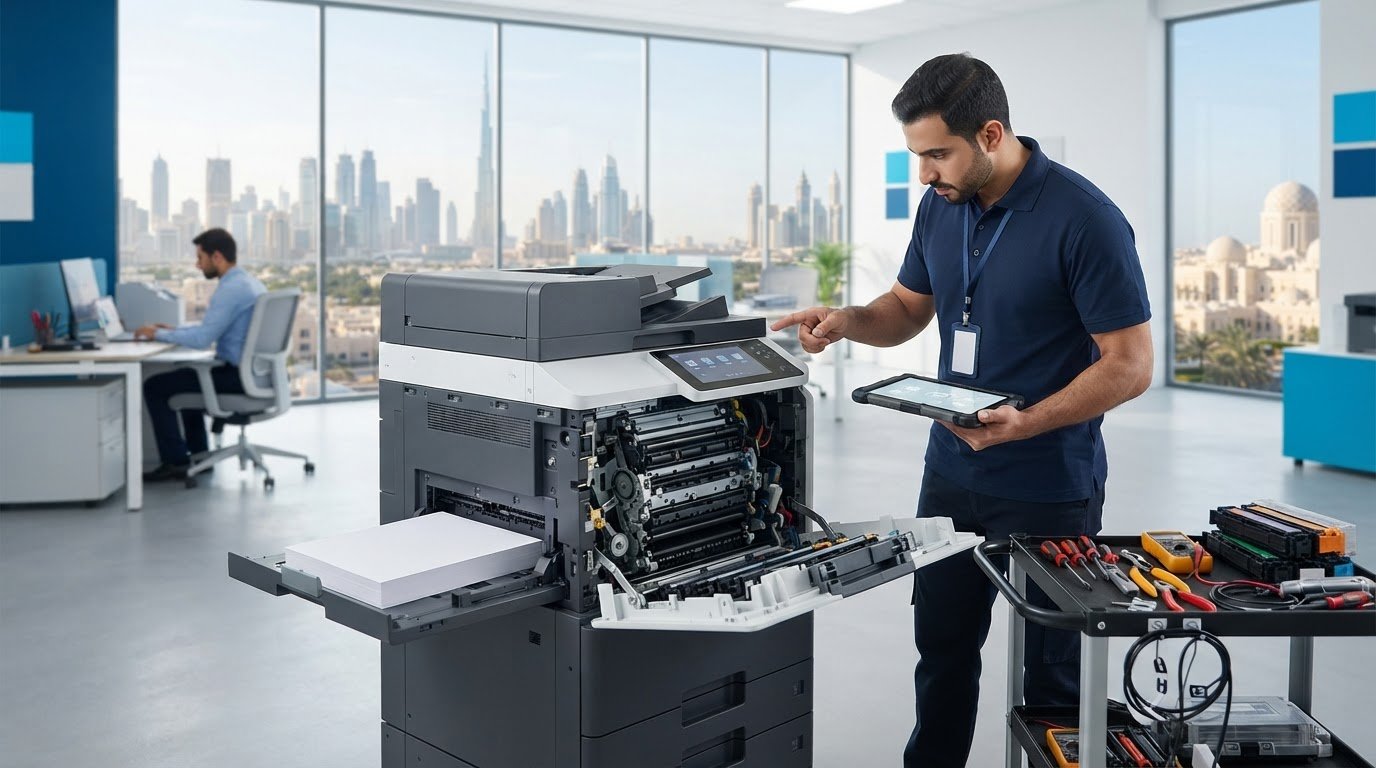
A printer fault can be easier to assess when you record what happened before requesting support. A paper jam, faint print or persistent error message can interrupt routine office work, while the cause and repair scope remain unclear. For businesses seeking office printer repair in Dubai, a clear description of the fault gives the service team a useful starting point.
ZD Computer Trading LLC provides office-technology sales, installation, maintenance and repair for businesses in Dubai and Sharjah. This article explains what to note before requesting printer support, how to prepare the device and work area for assessment, and which details help clarify the next step for your workplace.
Key Takeaways
- Sort symptoms into print-quality, paper-feed, connectivity or device-operation faults to describe the issue clearly.
- A focused office printer repair in Dubai assessment helps establish which functions are affected and what repair scope may be appropriate.
- Note the exact printer model, capture the fault with a clear photo or short video, and make the device accessible for assessment.
- ZD Computer Trading LLC provides office printer repair and spare-parts support in Dubai and Sharjah for HP, Canon, Epson, Kyocera, Konica Minolta, Brother and Zebra devices.
Office printer repair in Dubai: recognise the fault and assess its impact
A printer interruption can hold up invoices awaiting dispatch, delay reports for a meeting or leave product labels unfinished. In a shared office, one device fault may affect several teams. Note which work is stalled and whether another printer can handle it. For example, distinguish a device used for routine documents from one needed for labels or shared multifunction tasks. This helps explain the business impact without guessing at the cause.
Start with what staff can observe. Print-quality problems include faded output, streaks or missing content. Paper-feed symptoms include repeated jams or sheets feeding unevenly. Connectivity issues may appear as print jobs stuck in a queue or a device unavailable to some users. Device-operation problems include failure to start, warning lights or unusual sounds. These clues help describe the fault, but they do not confirm which part, if any, needs repair.
Compare your printing requirements with the available office printer options when assessing equipment needs, especially if the current device no longer suits the tasks your team relies on.
Which printer symptoms should an office record?
Record the exact error message, warning-light pattern and any unusual sound. Note when the issue occurs, such as during a large report, label print, duplex job or after the device has been idle. Identify whether it affects one user, one job type or all printing. For a shared printer, ask whether colleagues see the same issue. These details make an office printer repair in Dubai enquiry clearer without treating an observation as a diagnosis.
When does a recurring printer fault need assessment?
A single paper jam or interrupted job may be an isolated event. Follow the device’s normal user checks, then observe whether the problem returns. If it recurs, affects multiple users or prevents a routine task from completing, arrange an assessment and share the pattern you recorded. Avoid naming a failed component based only on a symptom. The assessment should establish the fault and suitable repair scope.
What an office printer repair assessment in Dubai should establish
An office printer repair in Dubai assessment should clarify the reported fault, which functions are affected and what repair work may be appropriate. For example, a device that powers on but will not print presents a different symptom from one that cannot complete its start-up process. Sharing the sequence of events helps distinguish the observed problem from the work needed to address it.
A symptom is useful evidence, but not a diagnosis. A displayed error, repeated paper jam or faded page can help focus an enquiry, but none confirms a failed component on its own. Model details matter too: parts and repair requirements vary by make and model, so identifying the exact device helps frame the assessment accurately.
What information helps identify the printer and fault?
Share the exact make and model, the message or warning shown, and what was happening when the issue appeared. Note whether it began after a particular job or change in use. Attach a clear photo or short video if practical. If the printer can still produce a test page, mention whether the fault appears there too. This gives the repair team useful context before examining the device and helps clarify which functions need attention.
How should businesses think about repair versus replacement?
There is no single rule for every office. Consider how often the fault returns, the printer’s overall condition, the tasks it must handle and the repair scope established through assessment. Compare repair cost and expected remaining use with a suitable replacement. Review printer spare parts and repair support when a model-specific assessment identifies a component that needs attention.
Use the assessment findings to decide whether repair addresses the printer’s current role or whether your workplace requirements point to a different equipment decision. A printer used for occasional internal documents may have a different priority from one that supports daily dispatch or customer paperwork.
How Dubai and Sharjah offices can prepare for printer repair
A little preparation makes a repair enquiry more useful and an assessment more focused. Before arranging support, gather the device details and note the effect on office work:
- Identify the printer. Record its exact make and model from the device label or display.
- Document the fault. Note the error message, when the issue started and how often it occurs. Add a clear photo or short video if practical.
- Describe the work impact. Explain which tasks are delayed and whether the issue affects one user, a particular print job or the whole office.
Keep relevant error details available for the assessment. If the message disappears after restarting, record it first. Make the printer accessible by clearing items around it and ensuring the technician can reach the device and its usual connection points. Avoid moving cables or dismantling covers to investigate. A clear view of the setup and original symptom is more useful than an attempted repair that changes what the device is doing.
What should a repair enquiry include?
For an office printer repair in Dubai enquiry, provide the exact model, a concise fault description and a clear photo or short video showing the problem. Include when it began and whether it happens consistently or intermittently. If the fault appears during a specific task, such as printing labels or a multi-page report, mention that as well. Accurate identification helps focus discussion of printer spare parts and repair services.
What should a business prepare for an onsite visit?
For a business quotation or onsite visit, prepare copies of the Trade License and TRN certificate (if your company is VAT-registered), the complete office address and Google Maps location, plus the contact person’s name and mobile number. These details are separate from the model and fault evidence needed for a repair enquiry. Sharing them together clarifies the business request and where the printer is located.
With the device accessible and the key details gathered, ZD Computer Trading LLC can assess printer repair requirements for businesses in Dubai and Sharjah.
Arrange office printer repair in Dubai or Sharjah with ZD
ZD Computer Trading LLC provides printer repair and spare-parts support for business customers in Dubai and Sharjah. The service covers HP , Canon , Epson , Kyocera, Konica Minolta, Brother and Zebra printers. Start with the device details and fault description. An assessment can establish the issue and appropriate repair scope, and a quotation can reflect the requirements identified rather than assuming a fixed cost or repair timeframe.
What to include when requesting a repair quote
For an office printer repair in Dubai enquiry, provide the exact make and model and a clear photo or short video showing the issue. Add a concise description of what happens, when it began and how often it occurs. These details help distinguish the reported symptom from the assessment itself. The assessment establishes what the printer needs; it does not mean a specific part or repair has already been confirmed.
For a business quotation or onsite visit, also provide copies of the Trade License and TRN certificate (if your company is VAT-registered), the complete office address and Google Maps location, and the contact person’s name and mobile number. Keeping these business and location details separate from the fault description makes the request easier to review.
How to contact ZD Computer Trading LLC
Dubai and Sharjah businesses can contact ZD Computer Trading LLC by mobile or WhatsApp on +971 50 886 3312, or by office landline on 04 393 1778 (international format: +971 4 393 1778). Include the printer model and fault evidence with your enquiry so the next step can be considered in context.
Keep office printing aligned with business needs
A repair can be a useful point to review how printing fits into daily operations. Once the device is assessed, consider whether its role, access arrangements and typical workload still match the way your team works. Keep a record of the assessment and outcome so staff can distinguish a new interruption from a recurring issue and provide useful context in a future enquiry.
For businesses considering office printer repair in Dubai, use the assessment to support an informed decision rather than simply returning to the previous routine. Consider which tasks depend on the printer, who uses it and whether the same problem has affected more than one job type. These details can help your team plan around the device’s actual role.
To arrange office printer repair in Dubai or Sharjah, contact ZD Computer Trading LLC on mobile or WhatsApp at +971 50 886 3312, or call the office landline at 04 393 1778 (international format: +971 4 393 1778). Include the printer model, a description of the fault and a clear photo or short video with your enquiry.
Frequently Asked Questions
Which office printer brands can ZD repair in Dubai and Sharjah?
ZD Computer Trading LLC repairs HP, Canon, Epson, Kyocera, Konica Minolta, Brother and Zebra printers for business customers in Dubai and Sharjah. Zebra devices are used for barcode printing, so include the printer’s role in your enquiry if it supports a specific office process. Identifying the brand and model helps clarify which equipment is involved and gives the repair team useful context.
What information should I send when requesting office printer repair?
Send the printer’s exact make and model, a clear photo or short video of the issue, and a brief description of what happens. If the fault appears only during a particular task, such as printing labels or scanning a multi-page document, mention that too. For office printer repair in Dubai enquiries, this context helps the team understand the reported problem before assessment.
Does ZD provide office printer repair in Sharjah as well as Dubai?
Yes. ZD Computer Trading LLC provides office printer repair and spare-parts support for business customers in both Dubai and Sharjah. If more than one device is affected, identify each printer separately, including its location within the office and the issue it shows. This keeps the details for separate devices clear rather than combining their symptoms.
Should an office printer be repaired or replaced?
Base the decision on the device’s condition and whether it still suits the work your team needs it to do. Consider whether the printer supports essential tasks, whether interruptions keep returning, and what the assessment identifies as the repair scope. A printer used for occasional internal documents may have different business importance from one central to daily customer or dispatch paperwork.
What should I do if my office printer displays an error code?
Record the code exactly as shown before taking any action that might clear it. Note which screen or panel displayed it and what the printer was doing at the time, such as starting up or processing a job. Avoid assuming the code identifies a particular failed part. Share the code with the printer model and an image of the display when requesting an assessment.
Service information
This article provides general information. Diagnosis, parts availability, pricing, warranty and repair options depend on the device model, condition, inspection findings and service location. Contact ZD Computer Trading LLC for a confirmed assessment and quotation.
