
Printer Repair
Why Is There a Black Line on Every Photocopy?
Nov
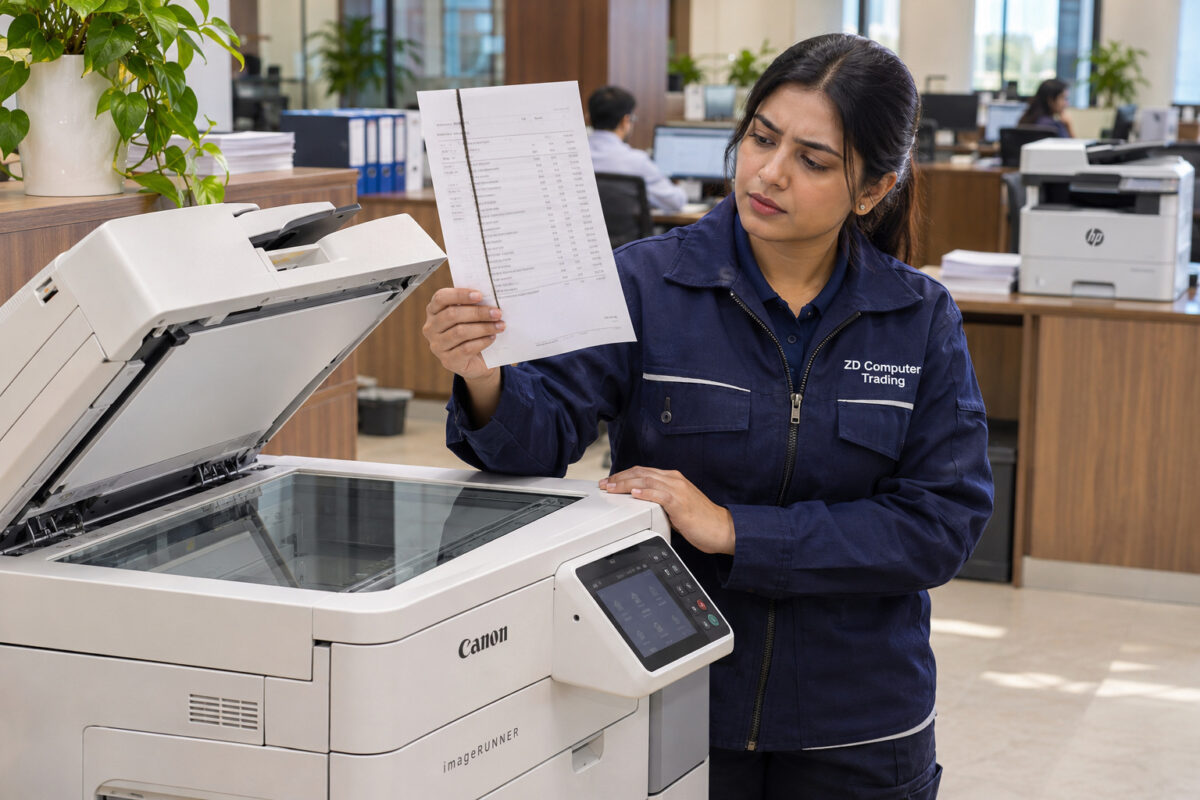
You print an invoice from your laptop and it comes out clean. A few minutes later, you put a signed copy through the office copier. This time, a thin black line runs down the page. Before you order toner, keep both sheets. The difference between them is the first clue to where the fault lies.
Try the same page three ways
Use a simple one-page document with a little text and plenty of white space. A blank margin makes a faint streak easier to see.
- Print from the computer. Check the sheet for a line. If it is clean, use it as your original for the next two tests.
- Copy from the flatbed glass. Place the original face down against the alignment mark and make one copy.
- Copy through the automatic document feeder. Feed the same original through the top tray, following the orientation symbol. Keep the three results side by side.
If the line appears only on the feeder copy
Many office copiers use a narrow strip of glass beside the main flatbed when scanning pages through the feeder. The page moves past that strip. A speck of dried correction fluid or adhesive can stay in one spot while the entire sheet passes, leaving a long streak on the copy. That explains how a tiny mark can spoil a full page, even when the large scanner glass looks spotless.
Check your model’s cleaning guide for the location of the feeder glass and the recommended cleaning method. After cleaning, run the same original through the feeder again. If the line remains, keep the sample and note whether it appears on the front, back or both sides of a two-sided copy.
If the line also appears on a computer print
Print an internal report or test page from the printer’s own menu, if available. A line on that sheet gives the technician a sample produced without the computer or scanner. If the internal page is clean, keep a copy of the file that produced the mark. These two results help narrow down the fault before anyone quotes for a cartridge or repair part.
Book onsite printer repair in Dubai or Sharjah
Send ZD Computer Trading LLC a photo of the printer’s model label, a photo of the three samples together and your office location. Mark each sheet “Print,” “Flatbed” or “Feeder” so our technician can see exactly when the line appears. Use a sample document with no customer details. If the mark is hard to photograph, a short video showing the sheet as it leaves the machine can help.
Contact ZD Computer Trading for onsite printer repair
Manufacturer guidance · HP’s guide to vertical lines when copying or scanning through the feeder
