
Printer Repair
Why Is My Epson L3250 Missing One Colour?
Nov
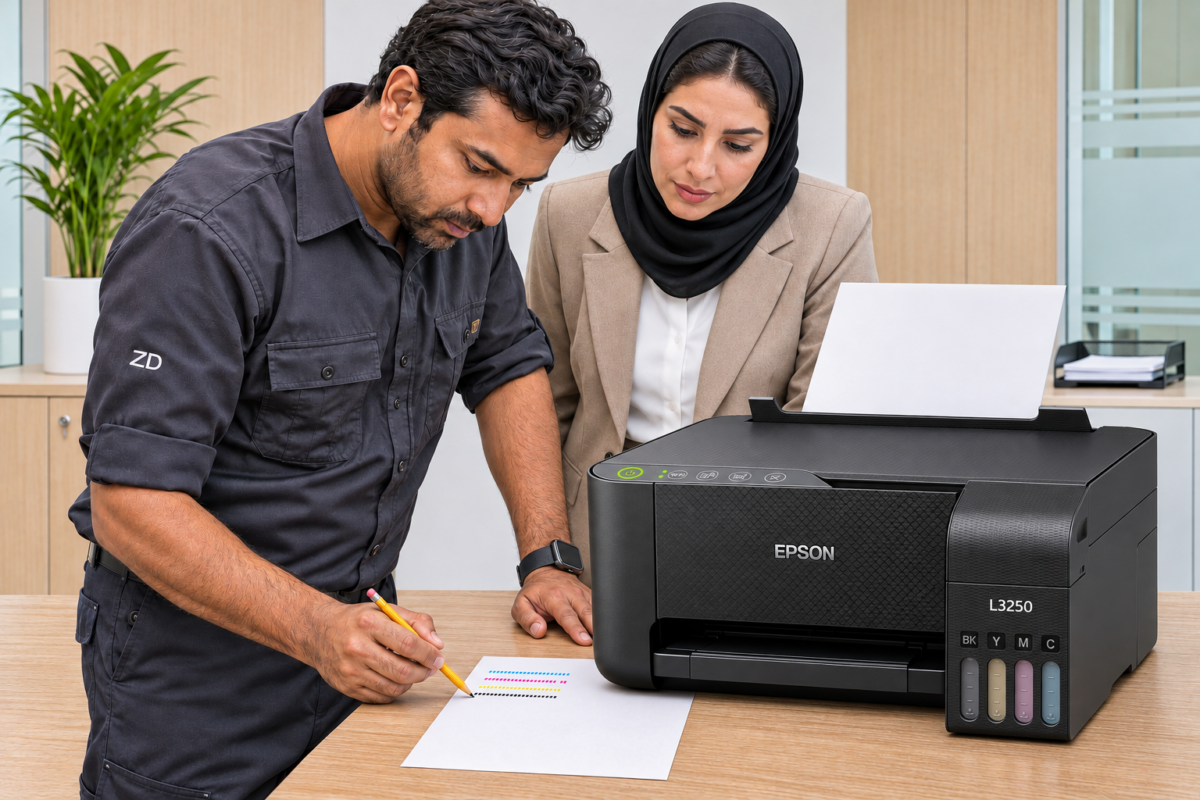
Your Epson L3250 prints the black text on a quotation perfectly, but the red company logo comes out yellow. You open the file again and the logo is still red on screen. Before sending another batch to the printer, load one sheet of plain A4 paper and print a nozzle check. This small test shows whether each ink colour is reaching the page. It also gives a repair technician a much better starting point than a photograph of the logo alone.
Why a red logo can turn yellow
The EcoTank L3250 uses four inks. You can see their initials above the tank windows. They are BK for black, Y for yellow, M for magenta and C for cyan. The printer mixes colours on the page. Red usually needs both magenta and yellow, so a loss of magenta can leave the yellow behind. A different file may show the same fault as a purple heading that looks blue. In both cases, check the magenta section on the test sheet.
Look through the tank windows and compare each ink level with the lower mark. If a level is below the mark, follow Epson’s refill instructions for your model. A visible supply of ink tells you what is in the tank. The nozzle check tells you what actually reaches the paper.
How to print a nozzle check on the Epson L3250
The L3250 has a row of buttons and indicator lights. You can run this test directly at the printer, even when the office computer is switched off. The green power ring and Wi-Fi light show power and wireless status. The printed pattern is what tells you about colour.
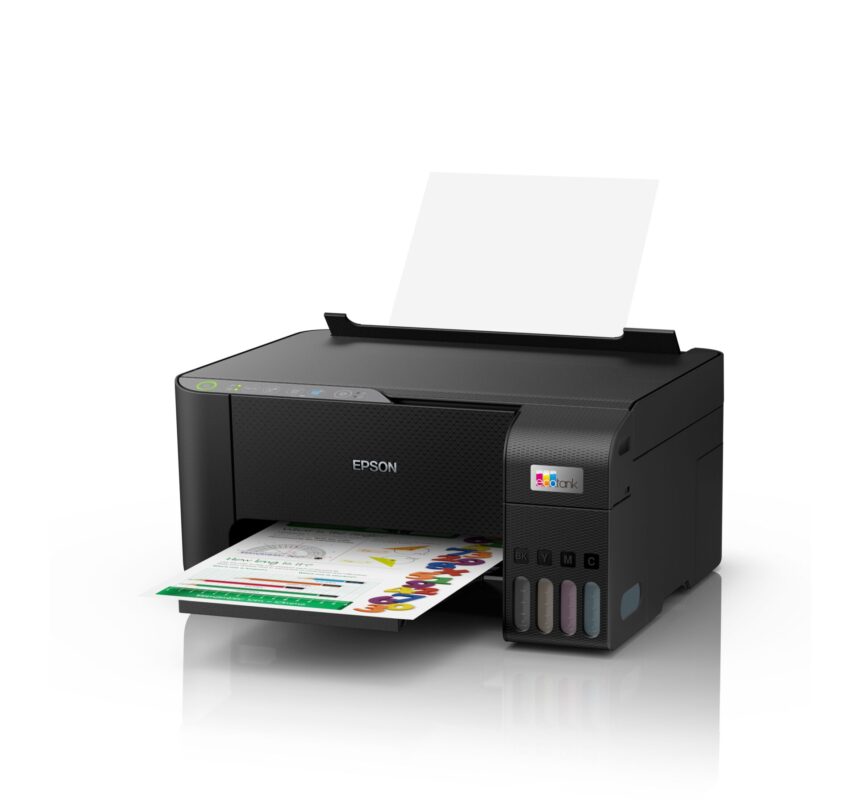
1. Load one sheet. Put plain white A4 paper in the rear feed, open the output tray and switch the printer off using its power button.
2. Start the built-in test. Hold the Stop button, marked with a triangle inside a circle. While holding it, press Power to switch the printer on. Release both buttons when the power light starts flashing. Give the printer time to produce the sheet.
3. Read all four patterns. Place the page on a desk in good light. The yellow lines can be easy to miss under warm lighting. Check each group from end to end and keep the sheet for comparison. Epson’s illustrated guide shows the buttons and sample patterns side by side. See the L3250 nozzle-check instructions.
What to do with the result
All four patterns are complete. Print a different colour document from the same computer. If that prints correctly, return to the original file and check its print preview. If every document comes out in black and white, check the colour setting in the application and in the printer driver. A saved Grayscale preset can carry over from the last job. Switch to colour and test a single page.
A few lines are broken in one colour. Follow the L3250 guide for a normal head-cleaning cycle. Once it finishes, print a second nozzle check. Write “before” and “after” on the sheets and compare the same group of lines. You may see part of the magenta pattern return before the logo looks right again.
One whole colour is absent. Photograph the pattern and the corresponding tank window. Note when that colour last printed correctly and whether the tank recently ran low or was refilled. A missing band identifies the affected ink. A technician can then check its supply and assess the print head before quoting for parts.
When to stop cleaning and request a repair
Cleaning uses ink. Epson’s L3250 guide advises a pause of at least 12 hours without printing if three normal cleaning and nozzle-check cycles have made no improvement. After the pause, print a fresh pattern. If most lines were missing from the start, Epson gives separate Power Cleaning instructions with their own requirements. Read those before starting a more intensive cycle.
If you need the printer for a deadline, keep the original file and the first test sheet together. When the fault has been addressed, compare a fresh nozzle check with the first one, then print a single copy of the original quotation. Look at the logo, small coloured text and any shaded totals before releasing the rest of the batch.
Book Epson printer repair in Dubai or Sharjah
ZD Computer Trading LLC offers onsite printer diagnosis in Dubai and Sharjah. If your Epson L3250 keeps losing the same colour, send a photo of the model label, a clear photo of the nozzle check and a one-minute video showing the fault. Tell us whether it affects computer prints, colour copies or both, and which cleaning steps you have already tried.
For an office visit or formal quotation, include your trade licence and TRN certificate copies, full office address, Google Maps pin and the contact person’s name and mobile number. For a home visit, send the building name, complete address, map pin and contact details. Message the ZD printer repair team on WhatsApp at +971 50 886 3312 or view our printer repair services.
