
Printer Repair
New Toner Installed but Still Not Recognised? Printer Support in Dubai and Sharjah
Nov
You have fitted a replacement toner cartridge, closed the printer and returned to the pending invoices. The warning is still there. A new cartridge does not, by itself, explain why the machine has stopped. The next step is to identify the message and installation details before spending more money or changing settings.
Start with the exact message and model
Photograph the complete display, including the colour, symbol or error code. Record the full printer model from its sticker and the code printed on the installed cartridge. Note whether the warning appeared immediately after replacement, after closing a cover or during the first print attempt.
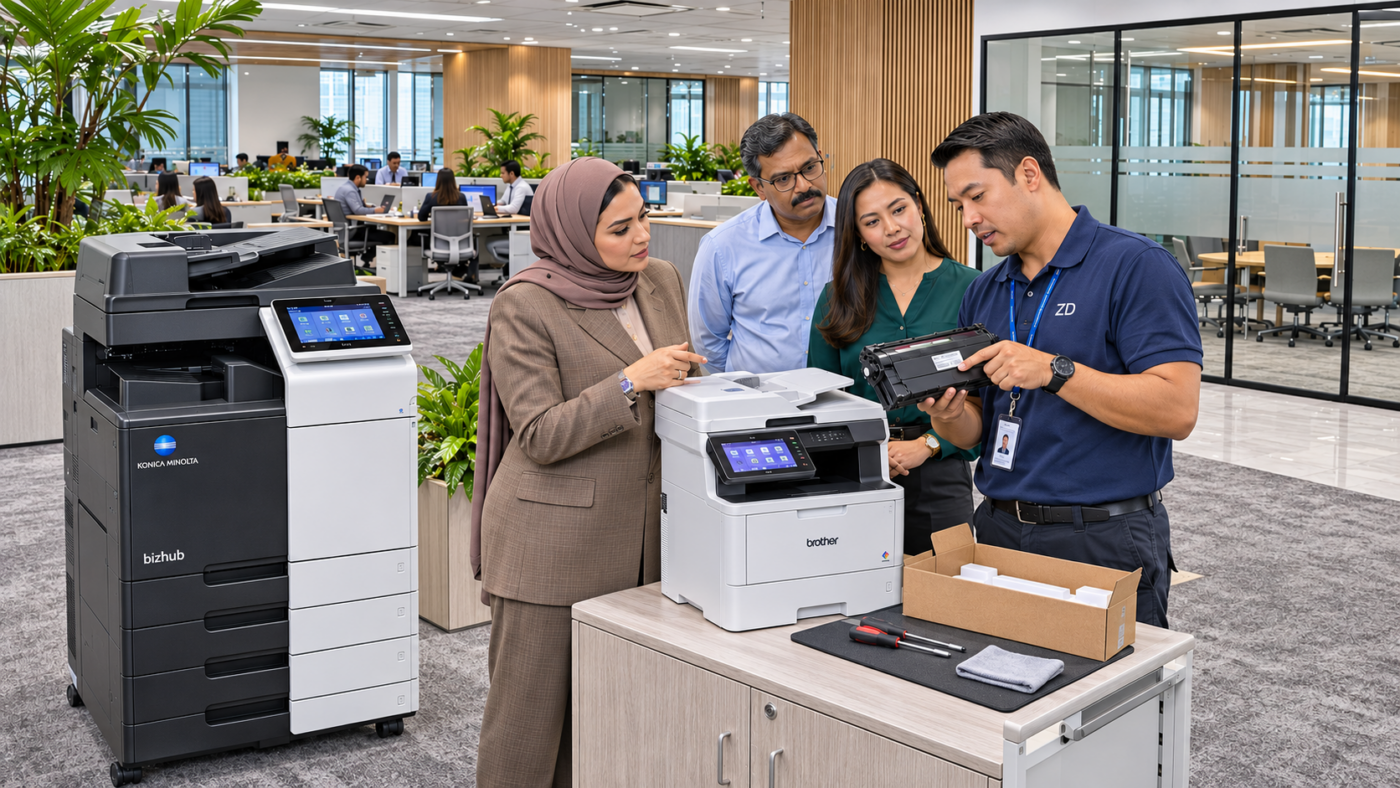
The wording matters. Brother’s MFC-L9630CDN guidance distinguishes “No Toner”, “Cannot Detect” and “Cartridge Error”. Detection messages can also concern other assemblies, so reading only the first line can send troubleshooting in the wrong direction. For the Konica Minolta bizhub C451i series, “Install toner cartridge” is associated with incorrect installation. These examples require their own model-specific instructions.
Check preparation and seating through the manual
Find the replacement procedure for the exact model before opening anything. Follow its instructions about machine power, access covers, handles and cartridge preparation. Similar-looking printers can use different procedures.
- Compare the cartridge label with the printer’s specified supply code and the indicated colour position. Keep the box available for checking.
- Check only the protective packaging identified in the installation instructions. Remove the specified cover or seal as directed; do not peel off unfamiliar labels or dismantle the cartridge.
- If the manual calls for reseating, follow that sequence carefully and check that the assembly and covers return to their instructed positions. Stop if anything resists or does not align.
Brother’s guide includes reseating the indicated toner cartridge for relevant installation errors. Persistent errors need the next model-specific action or service assessment. Repeatedly pushing the cartridge harder is not a diagnostic test.
Confirm which part the printer is reporting
On the Brother example, the toner cartridge and drum unit are separate parts. Replacing toner does not mean the drum was replaced. Record the exact component named by the machine rather than describing every consumable warning as a toner problem.
Tell the technician which parts were removed and whether the original drum remained in use. If the cartridge code itself is uncertain, our office toner identification guide explains what information to collect. Keep the recognition fault and the supply-code check together when requesting help.
Avoid resets that hide the original evidence
Do not try an internet counter-reset sequence simply because the cartridge is new. Use a reset only where the manufacturer requires it for the exact maintenance operation actually completed. A cleared counter does not establish that the cartridge fits or that the machine can detect it.
Avoid chip bypasses, altered contacts, security-setting changes or firmware changes suggested without a model-specific diagnosis. Leave internal electrical contacts and detection components for a technician to assess. Preserve the original error photo and report any changes already attempted so that troubleshooting starts with an accurate history.
What an onsite assessment should establish
A useful assessment checks the supplied cartridge, its fit and seating, and the relevant assembly before concluding that the new toner is defective. Depending on the model and evidence, further checks may include contacts, cartridge recognition and the associated detection mechanism. These are diagnostic possibilities, not a remote diagnosis of a failed sensor.
Explain whether one colour or several are affected and whether the previous cartridge was recognised before removal. Keep the removed cartridge available for identification; do not repeatedly swap parts without guidance. After any corrective work, check the displayed status and a controlled print job, recording any remaining warning or separate print-quality problem.
Request printer support in Dubai or Sharjah
ZD Computer Trading provides onsite printer support in Dubai and Sharjah. Send your service request on WhatsApp to +971 50 886 3312 with:
- Company name, Trade License (TL) and TRN details.
- Complete office address, map location and the contact person’s local UAE mobile number.
- Clear photos of the printer model sticker, cartridge label and full error display.
- A one-minute video showing the fault, plus a short description of the replacement and checks already attempted.
Manufacturer references
- Brother MFC-L9630CDN family Online User’s Guide: error messages and toner replacement
- Konica Minolta bizhub C651i/C551i/C451i: typical messages and remedies
