
Printer Repair
Why Does Toner Rub Off the Paper? Office Printer Repair in Dubai and Sharjah
Nov
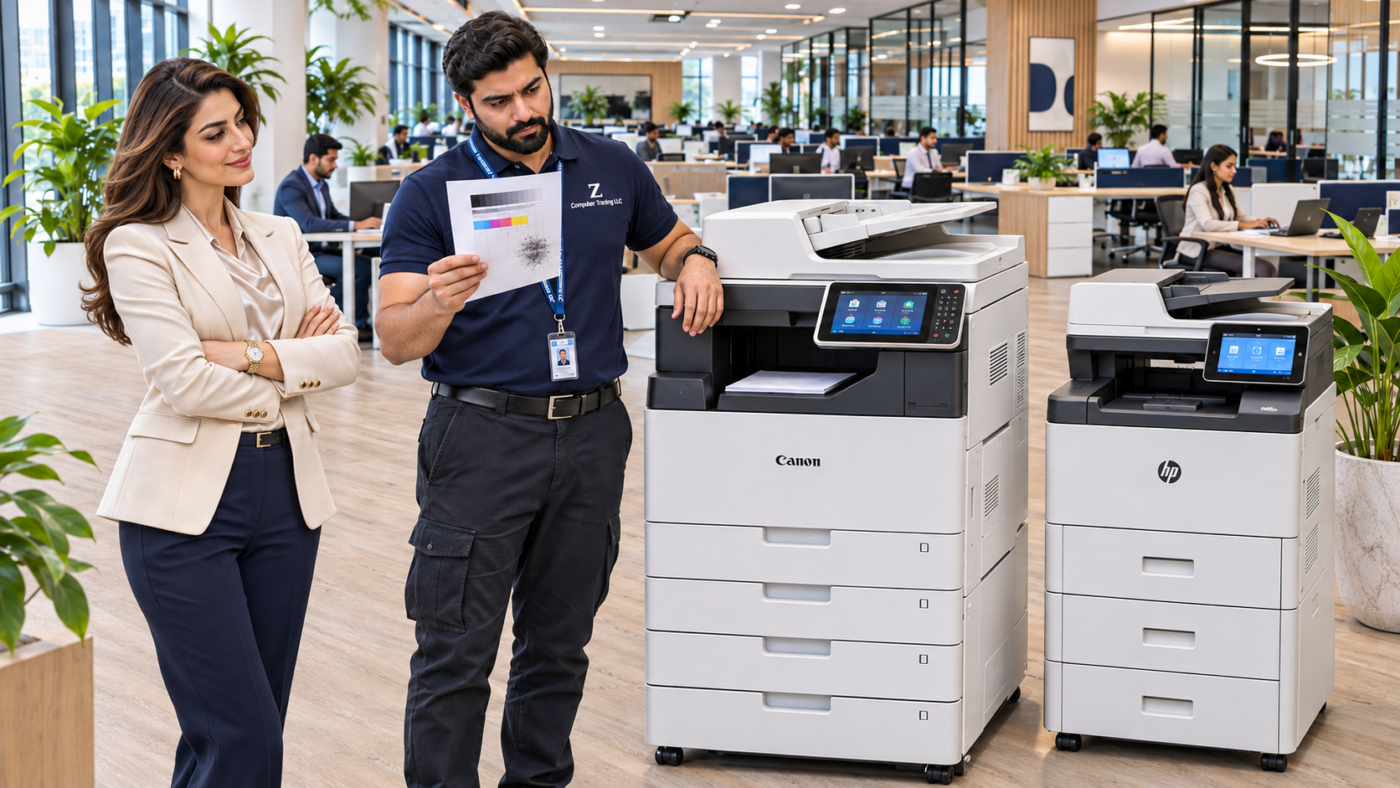
An invoice looks clear when it leaves the printer, but the black text smears when someone handles it. On another page, part of the company logo flakes away. For a busy office, this can mean wasted paper, repeated printing and documents that are difficult to read.
If toner rubs off your laser printer’s output, start with a few simple checks. The symptom alone does not confirm that the toner cartridge or fuser needs replacement. ZD Computer Trading can help businesses in Dubai and Sharjah identify the cause before deciding on a repair.
What makes toner stay on the page?
Laser printers use heat to bond toner to the paper. This happens in the fixing assembly, often called the fuser. When the printed surface does not hold properly, paper selection, print settings and the printer’s condition all need consideration.
This guide applies to laser printers and toner-based copiers. An inkjet printer that produces wet or smudged ink requires different checks.
Start with the paper you are using
Check the paper packaging and your printer’s supported media specifications. Ordinary office paper, thick letterheads, labels and coated sheets can have different printing requirements.
Use paper intended for laser printing and supported by the exact machine. Do not assume that glossy paper supplied for an inkjet printer is also suitable for a laser copier.
For a useful comparison, try a small print on fresh, supported plain paper. Note whether the same document prints cleanly on this paper but smears on your usual stock. Keep both samples for the technician.
Match the settings to the loaded paper
The paper type selected on the printer and in the computer’s printing preferences should match the stock being used. Check the selected tray as well: a job can draw paper from a different tray than expected.
For example, an office may load heavier letterhead while the print job remains set to ordinary plain paper. Correcting the media selection is a sensible first check.
Use the settings recommended for your particular model. Do not select the heaviest option at random or copy service-menu adjustments from a different printer. Some media settings also change printing speed.
Record when the problem happens
A short set of observations helps narrow the investigation:
- Does it affect every page or only particular documents?
- Is it limited to black print, colour print or large solid areas?
- Did it begin after changing paper or installing a cartridge?
- Does it happen from every computer?
- Is an error message displayed on the machine?
Print one small comparison job after checking the paper and settings. Avoid repeatedly sending a large batch while the defect continues. Save an affected page and photograph the error screen, if there is one.
When should an engineer inspect the printer?
Arrange an inspection if toner still comes away after you have checked supported paper and matching settings. The engineer can assess the output and determine which component or setting needs attention.
A print sample is useful evidence, but it is not a confirmed diagnosis. Replacing a fuser or cartridge without checking the machine can leave the original problem unresolved.
Do not touch or dismantle the fixing assembly: it can be hot. If the printer produces smoke, a burning smell or an unusual mechanical noise, stop using it and request assistance.
Request printer repair in Dubai or Sharjah
ZD Computer Trading provides onsite printer diagnosis and repair support in Dubai and Sharjah, subject to scheduling.
Send a clear photo of the rear model sticker, a one-minute fault video, an affected print sample and the paper type or weight you are using.
For a business quotation or visit arrangement, also share your Trade License and TRN certificate, full office address, Google Maps location, and contact person’s name and mobile number.
WhatsApp: +971 50 886 3312
Website: zdcomputertrading.com
